Open Android AVIF Photos on Windows PC | AVIF to PNG

The Problem: Phone Photos Won't Open on PC

How to open Android AVIF on Windows

You just went on a trip, took hundreds of beautiful photos on your modern Android phone (like a Google Pixel or Samsung Galaxy), and connected it to your Windows computer to back them up.

But when you try to open the files, you get a frustrating error: "Unsupported file format" or the Windows Photos app asks you to buy an extension. You look at the file names, and instead of the familiar .jpg or .png, your photos end in .avif or .heic.

Why is this happening, and more importantly, how do you make your computer recognize your photos?


Why Does My Android Phone Save Photos as AVIF?

Since Android 14, Google and other smartphone manufacturers (like Samsung) have been quietly transitioning their default camera saving formats to AVIF (AV1 Image File Format) or HEIC.

There is a very good reason for this: Storage Space. Smartphone cameras are now 50 Megapixels or more. If you saved those as traditional JPG or PNG files, your phone's storage would fill up in a matter of days. AVIF uses highly advanced video-compression technology to squeeze those massive, high-quality photos into tiny file sizes.

  • The Pro: You can store 2x to 3x more photos on your phone without losing any visual quality.
  • The Con: Older operating systems, specifically Windows 10 and older versions of Windows 11, do not have native "codecs" (the software needed to read the file) to understand what an AVIF file is.

So, your phone knows exactly what the photo is, but your Windows computer is completely blind to it.


The Solution: Convert to a Recognizable Format (PNG/JPG)

Since you can't easily force an older Windows PC or a legacy photo viewer to magically understand the AVIF format, the easiest and most reliable solution is to convert the photos back into a universal format that every computer has recognized for the last 20 years: PNG or JPG.

Step 1: Transfer the Photos to Your PC

Keep the .avif files on your computer's hard drive. Don't worry if they just look like blank white icons right now.

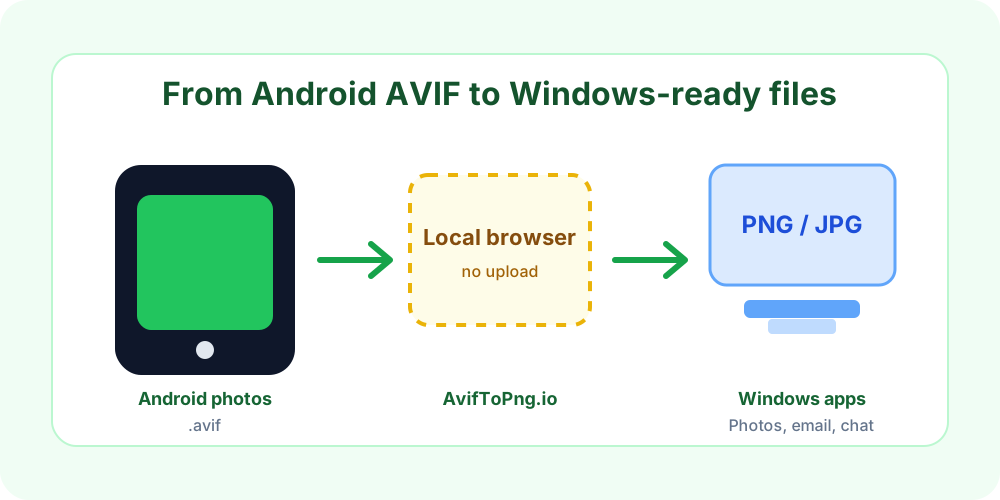
Step 2: Use a Safe, Local Converter

Because these are your personal photos (potentially containing family, sensitive locations, or private moments), you should never use traditional cloud converter websites. Most generic "convert to PNG" websites force you to upload your personal photos to their remote servers, which is a massive privacy risk.

Instead, use a 100% client-side (local) converter like AvifToPng.io.

Why AvifToPng.io is the best choice for phone backups:

  • Total Privacy: It uses your web browser's built-in engine to convert the photos on your own computer. Your photos are never uploaded to the internet.
  • Batch Processing: Did you transfer 200 photos from your Google Pixel? Just highlight all 200 of them, drag them into the website, and it will process them instantly.
  • Completely Free & No Limits: Because it uses your computer's processing power instead of expensive cloud servers, there are no file size limits or paywalls.

Step 3: The 3-Second Conversion

  1. Open AvifToPng.io (for PNG) or AvifToPng.io/avif-to-jpg (for JPG).
  2. Drag and drop your unreadable Android photos onto the page.
  3. Click "Download All".

You will instantly get a ZIP file containing all your photos in a format that your Windows PC, Facebook, Discord, and every other software will instantly recognize and open.


Should I Change My Phone Settings Back to JPG?

Many people get so frustrated by the "Windows won't open my photos" problem that they go into their Android Camera settings and turn off the "High Efficiency Pictures" or "AVIF" option, reverting back to JPG.

We actually recommend keeping AVIF turned ON.

Your phone storage is precious, and AVIF is a vastly superior format for keeping your photos looking incredibly sharp while taking up a fraction of the space.

By keeping AVIF on your phone, you get the best of both worlds: maximum storage on your mobile device, and whenever you need to view or edit specific photos on an older computer, you can securely batch-convert them in seconds using a local tool like AvifToPng.io.


The Easiest Way to Open AVIF on Windows

If you prefer a universal format, simply convert your files using our free AVIF to PNG converter before transferring them to your PC.

Open Android AVIF Photos on Windows PC | AVIF to PNG