
How to Open and Edit AVIF Files in Photoshop
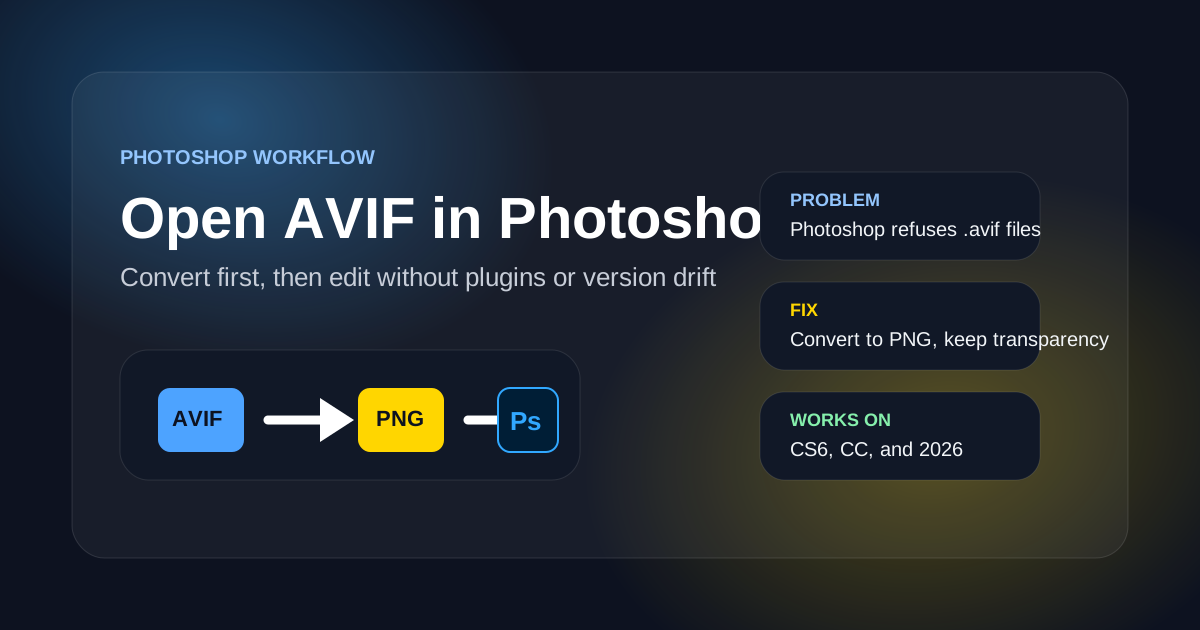
Photoshop does not open AVIF files natively. The fastest reliable workflow is to convert the AVIF to PNG or JPG first, then open the result in Photoshop without plugins.
PNG keeps transparency and is the safer choice for screenshots, UI assets, and layered editing. Use JPG only when the source is a photo and file size matters more than alpha.
Why Photoshop Users Run Into AVIF Issues
Adobe Photoshop added native WebP support but still ships without AVIF support out of the box. Most workflow problems come from the same four causes.
Photoshop has no built-in AVIF importer
Open, Place, and drag-and-drop all reject .avif files. Photoshop reports the file as not supported, even on the latest releases.
Third-party AVIF plugins are unreliable
Community plugins exist but break across Photoshop versions and operating systems. Most teams cannot rely on them in production.
Pixel and Android screenshots arrive as AVIF
Modern phones save photos and screenshots as AVIF. When you AirDrop or sync them to a desktop, Photoshop refuses to open them directly.
Conversion is faster than fighting the toolchain
Converting AVIF to PNG locally takes seconds, keeps the file private, and produces a layer Photoshop can edit without setup.
Why Convert-First Is the Recommended Photoshop Workflow
The point is not to force AVIF into Photoshop. The point is to land at a file Photoshop can open, edit, and re-export without surprises.
Works on every Photoshop version
Convert AVIF to PNG once and the result opens in Photoshop CS6, CC, and 2026 alike. No plugin install, no version drift.
Keeps transparency for design work
PNG preserves the alpha channel, so UI mockups, logos, and screenshots with rounded corners stay clean inside Photoshop.
Local conversion keeps the file private
Browser-based conversion never uploads the image, which matters for client work, internal screenshots, and unreleased designs.
AVIF and Photoshop FAQ
Short answers to the most common Photoshop AVIF support questions.
Open Your AVIF in Photoshop in Seconds
Convert the AVIF to PNG locally in your browser, then drop the PNG straight into Photoshop. No plugin, no upload, no signup.
Troubleshooting page
Photoshop support summary
- Use when
- Use this page when Photoshop refuses to open, place, or import an AVIF image.
- Decision rule
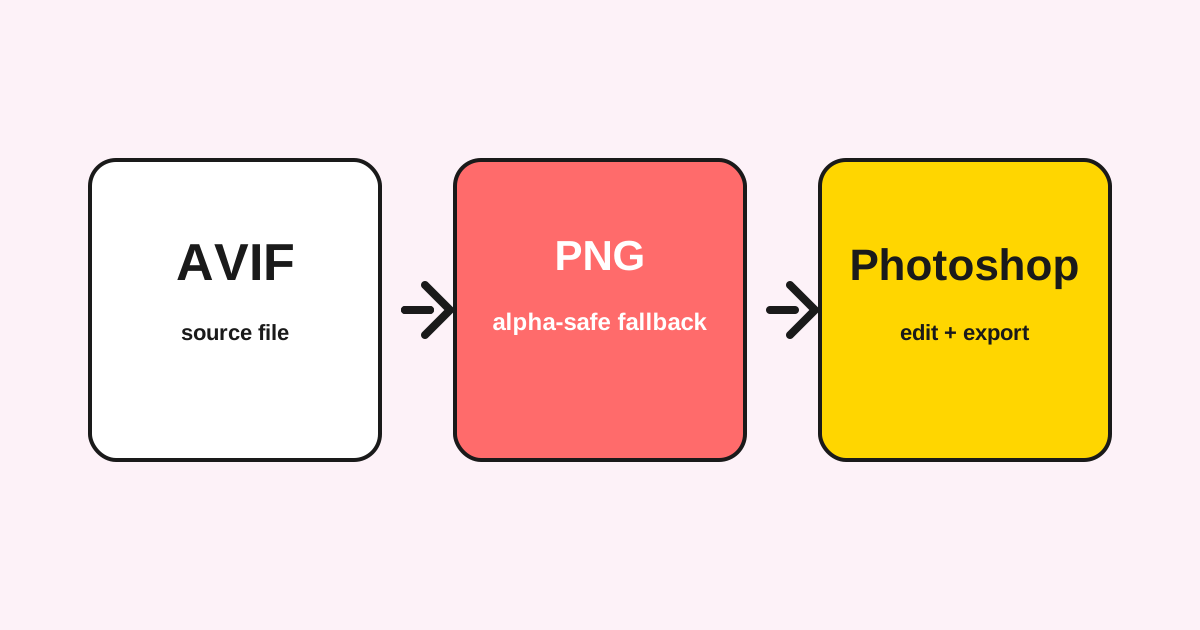
- Convert AVIF to PNG before Photoshop when transparency or editable screenshots matter; use JPG only for opaque photos.
Convert-first Photoshop workflow
The stable Photoshop path is to land on a format Photoshop already understands, then edit normally.
Support status and fallback
A troubleshooting page should say exactly which path works and which paths are unreliable.
| Workflow | Status | Recommended fallback |
|---|---|---|
| Open AVIF directly | Unreliable in Photoshop | Convert to PNG first. |
| Use third-party plugins | Version-dependent | Avoid for production handoff. |
| Edit transparent UI assets | Needs alpha-safe output | Use PNG, not JPG. |
Last updated: May 2, 2026 · Maintained by AVIF to PNG Editorial Team · v1.0