
How to Convert AVIF to PNG on Windows
If Windows Photos, File Explorer preview, Photoshop, Office, a CMS uploader, or another desktop app cannot open an AVIF image, first identify whether this is a codec problem or an app compatibility problem. Then convert to PNG when you need an editable, transparency-safe fallback.
Test the .avif file in Chrome or Edge first. If it opens there but fails in the Windows app, the file is usually valid and the target workflow needs a PNG or JPG fallback.
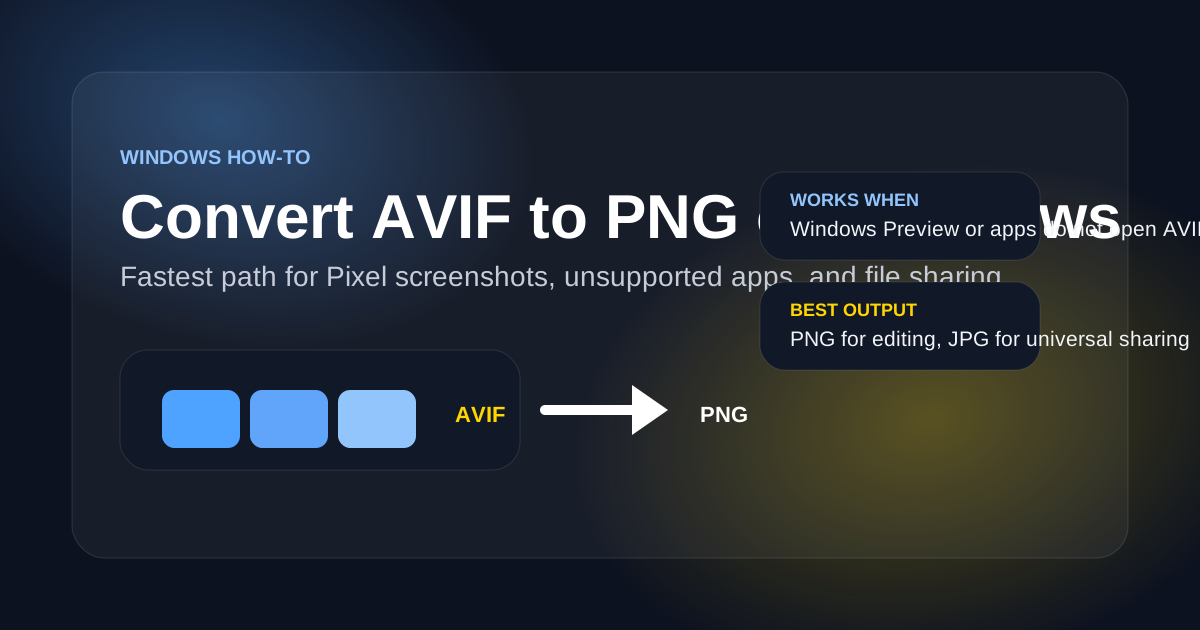
Windows AVIF Symptoms and Fixes
Most AVIF-to-PNG conversions on Windows happen after a specific app or upload flow rejects an otherwise valid .avif file.
Photos opens differently from other apps
Windows Photos or a browser may open AVIF, while Photoshop, Office, or a chat app still rejects the same file. App support and OS codec support are not the same thing.
File Explorer preview can be misleading
A missing thumbnail in File Explorer does not prove the AVIF is broken. Test in Chrome or Edge before deleting it, then create a PNG or JPG fallback if the next workflow needs one.
CMS and Office workflows often block AVIF
Many CMS uploaders, slide decks, documents, and older editors still expect PNG or JPG. Convert before uploading if the destination rejects .avif.
Choose PNG or JPG by output need
Use PNG for transparent graphics, screenshots, and editing. Use JPG for ordinary photos when smaller files and broad sharing compatibility matter more.
Why This Windows Troubleshooting Order Works
The goal is to separate a broken file from a missing codec or unsupported destination app before choosing the fallback format.
Start with a browser test
Chrome or Edge can often decode AVIF even when Windows Photos, Explorer preview, or another desktop tool fails. That test tells you whether conversion is enough.
Install codecs only when previewing is the goal
A codec can help Windows preview some AVIF files, but it may not fix Photoshop, Office, CMS uploads, or every third-party editor. Conversion is still the safer handoff.
Pick the output before converting
PNG keeps transparency and editing flexibility. JPG is better for opaque phone photos that need smaller files for email, print, or social apps.
Windows AVIF Conversion FAQ
Short answers for the most common Windows compatibility questions.
Need a Windows-Friendly Copy Right Now?
Open the AVIF file as PNG in your browser and keep the result ready for editing, previewing, or sharing.
Troubleshooting page
Windows troubleshooting summary
- Use when
- Use this page when a Windows app, preview pane, CMS, or editor cannot open an AVIF file.
- Decision rule
- First test the file in a modern browser. If it opens there but fails in the app, convert to PNG for the Windows workflow.
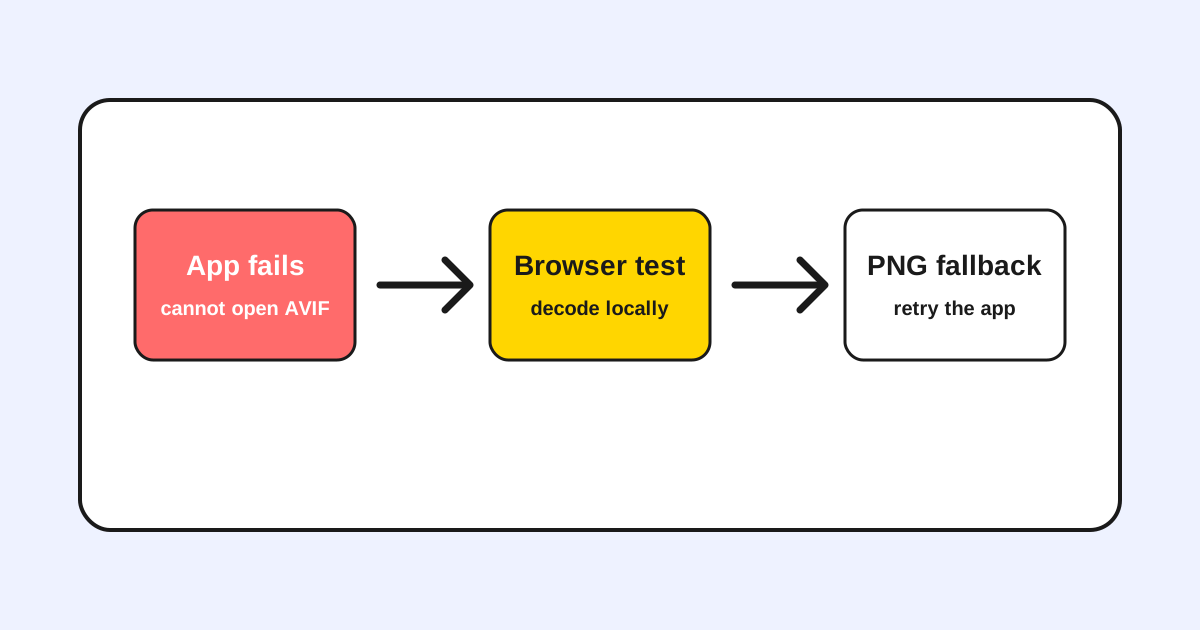
Windows AVIF fix flow
Troubleshooting content works best when it separates the symptom, the likely cause, and the fallback action.
Symptom, cause, fix
These are the practical branches users need before choosing PNG or JPG.
| Symptom | Likely cause | Fix |
|---|---|---|
| Photos or an editor rejects the file | The app does not ship an AVIF decoder. | Open the AVIF in a browser and export PNG. |
| CMS upload fails | The upload pipeline blocks AVIF. | Use PNG for graphics or JPG for photos. |
| Preview works but editing fails | Windows shell support and app support differ. | Convert first, then edit the fallback file. |
Last updated: Apr 21, 2026 · Maintained by AVIF to PNG Editorial Team · v1.0