
The Problem: Phone Photos Won't Open on PC
You just went on a trip, took hundreds of beautiful photos on your modern Android phone (like a Google Pixel or Samsung Galaxy), and connected it to your Windows computer to back them up.
But when you try to open the files, you get a frustrating error: "Unsupported file format" or the Windows Photos app asks you to buy an extension. You look at the file names, and instead of the familiar .jpg or .png, your photos end in .avif or .heic.
Why is this happening, and more importantly, how do you make your computer recognize your photos?
Quick Decision
- If Windows Photos, Photoshop, or a chat app rejects the file, convert the Android AVIF photo before sharing it.
- Choose AVIF to PNG when you want a lossless, broadly editable copy.
- Choose AVIF to JPG for regular phone photos going to email, print, or social apps, and read the AVIF guide if you need the format background.
Troubleshooting: Identify the Failure Before You Convert
Use the symptom first, then choose the smallest fix. A Windows AVIF problem is usually a viewer problem, an app compatibility problem, or an output-format decision.
| Symptom on Windows | Likely cause | Best fix |
|---|---|---|
| Photos app shows an error or blank preview | Windows or the Photos app cannot decode this AVIF variant | Try a current browser first; if the image opens there, convert it to PNG or JPG. |
| File Explorer has no thumbnail | Shell preview support is missing or inconsistent | Do not treat the file as corrupted; open it in Chrome or Edge and convert if needed. |
| Photoshop, Office, CMS, or chat upload rejects it | The destination app does not accept AVIF | Convert to PNG for screenshots, graphics, or transparency; convert to JPG for ordinary photos. |
| A codec install works in Photos but not in another app | The codec only helps part of the Windows stack | Keep the codec if it helps previewing, but create a fallback PNG/JPG for sharing or editing. |
Diagnosis steps
- Check the extension. If the file ends in
.avif, it may be valid even when Windows shows a blank icon. - Open the file in Chrome or Edge. If it renders in the browser, the photo is not damaged.
- Decide the output based on the next app: PNG for editing and transparency, JPG for normal photo sharing.
- Convert only the files you need to use on Windows; keep the original AVIF copies for phone storage and archive.
Why Does My Android Phone Save Photos as AVIF?
Since Android 14, Google and other smartphone manufacturers (like Samsung) have been quietly transitioning their default camera saving formats to AVIF (AV1 Image File Format) or HEIC.
There is a very good reason for this: Storage Space. Smartphone cameras are now 50 Megapixels or more. If you saved those as traditional JPG or PNG files, your phone's storage would fill up in a matter of days. AVIF uses highly advanced video-compression technology to squeeze those massive, high-quality photos into tiny file sizes.
- The Pro: You can store 2x to 3x more photos on your phone without losing any visual quality.
- The Con: Older operating systems, specifically Windows 10 and older versions of Windows 11, do not have native "codecs" (the software needed to read the file) to understand what an AVIF file is.
So, your phone knows exactly what the photo is, but your Windows computer is completely blind to it.
The Solution: Convert to a Recognizable Format (PNG/JPG)
Since you can't easily force an older Windows PC or a legacy photo viewer to magically understand the AVIF format, the easiest and most reliable solution is to convert the photos back into a universal format that every computer has recognized for the last 20 years: PNG or JPG.
Step 1: Transfer the Photos to Your PC
Keep the .avif files on your computer's hard drive. Don't worry if they just look like blank white icons right now.
Step 2: Use a Safe, Local Converter
Because these are your personal photos (potentially containing family, sensitive locations, or private moments), you should never use traditional cloud converter websites. Most generic "convert to PNG" websites force you to upload your personal photos to their remote servers, which is a massive privacy risk.
Instead, use a 100% client-side (local) converter like AvifToPng.io.
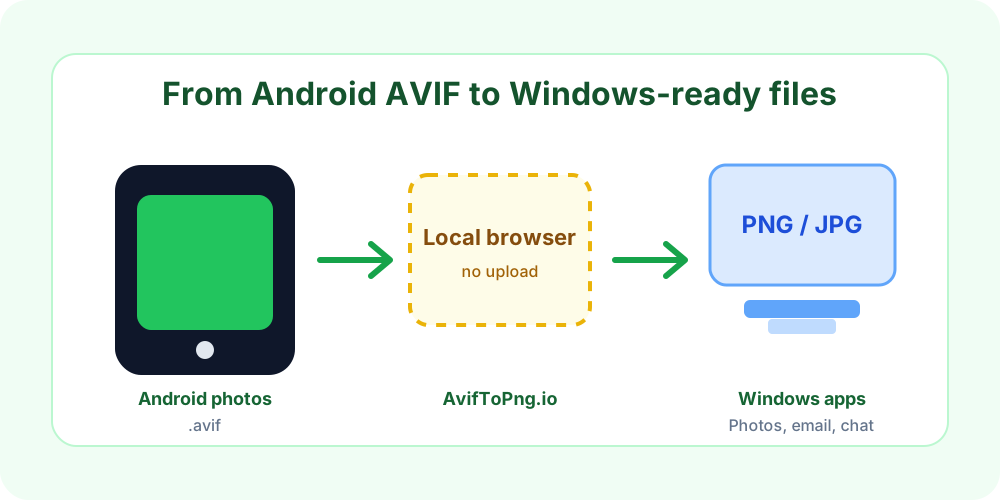
Why local conversion is a good fit for phone backups:
- Total Privacy: It uses your web browser's built-in engine to convert the photos on your own computer. Your photos are never uploaded to the internet.
- Batch Processing: Did you transfer 200 photos from your Google Pixel? Just highlight all 200 of them, drag them into the website, and it will process them instantly.
- Completely Free & No Limits: Because it uses your computer's processing power instead of expensive cloud servers, there are no file size limits or paywalls.
Step 3: Convert the Files You Need
- Open the AVIF to PNG converter for lossless PNG output, or the AVIF to JPG converter for regular photo sharing.
- Drag and drop your unreadable Android photos onto the page.
- Click "Download All".
You will get a ZIP file containing the selected photos in a format that your Windows PC, upload flow, or editing app can recognize more consistently.
Should I Change My Phone Settings Back to JPG?
Many people get so frustrated by the "Windows won't open my photos" problem that they go into their Android Camera settings and turn off the "High Efficiency Pictures" or "AVIF" option, reverting back to JPG.
We actually recommend keeping AVIF turned ON.
Your phone storage is precious, and AVIF is a vastly superior format for keeping your photos looking incredibly sharp while taking up a fraction of the space.
By keeping AVIF on your phone, you get the best of both worlds: maximum storage on your mobile device, and whenever you need to view or edit specific photos on an older computer, you can securely batch-convert them in seconds using a local tool like AvifToPng.io.
The Easiest Way to Open AVIF on Windows
If you prefer a universal format, convert your files with our AVIF to PNG converter. If the photos are for email, printing, or chat apps, use the AVIF to JPG converter instead.