
Convert AVIF to PNG on Mac
Mac AVIF support is better than it used to be, but it is still uneven across Preview, Finder, Safari, editors, CMS uploaders, and older macOS workflows. This troubleshooting page separates the symptom, the likely cause, and the safest fallback format.
Use this page when an AVIF file opens in one Mac context but fails when you preview, edit, upload, or share it.
Mac AVIF Symptoms to Check First
Do not treat every AVIF issue as the same bug. The right fix depends on where the file fails.
Preview opens the file, but another Mac app rejects it
This usually means macOS can decode the image, but the target app has not added AVIF import support. Convert to PNG before editing or placing the file.
Finder thumbnail or Quick Look is inconsistent
Finder and Quick Look behavior can vary by macOS version, file metadata, and image profile. A PNG fallback is safer for handoff.
Safari displays AVIF, but an upload form rejects it
Browser display support does not guarantee that a CMS, marketplace, email tool, or internal form accepts AVIF uploads.
Photos, AirDrop, or synced files arrive as AVIF
Phone screenshots and web downloads may land on your Mac as AVIF, then fail in older design, document, or publishing workflows.
Why AVIF Fails in Mac Workflows
The common pattern is partial support: one layer can decode the file, while another app or upload pipeline cannot.
macOS support depends on version and app layer
A newer system component may preview AVIF, while an older editor, document app, or plugin still treats .avif as unsupported.
Safari support is not the same as workflow support
Safari can display AVIF on the web, but that does not make AVIF acceptable to every Mac uploader or desktop app.
Some tools require PNG or JPG input
Design handoff, print, office documents, and older CMS pipelines often whitelist PNG and JPG while rejecting AVIF.
PNG is the safest Mac fallback for transparency
Use PNG when the AVIF may contain UI graphics, screenshots, alpha, or content that needs lossless editing after conversion.
How to Fix AVIF on Mac
Follow this order before installing anything. It confirms whether the problem is the file, the Mac app, or the upload workflow.
Step 1: Test the AVIF in Safari or Preview
Open the file in Safari, Preview, or Quick Look. If it opens there, the source image is probably valid and the failure is app-specific.
Step 2: Identify the failing Mac workflow
Check whether the failure happens in Finder, a design app, an upload form, email, a CMS, or a document tool. The fix should target that handoff.
Step 3: Convert AVIF to PNG for editable fallback
Use PNG when you need transparency, screenshots, UI assets, or lossless editing. The PNG result should work in more Mac apps immediately.
Step 4: Use batch conversion for folders
If the issue affects a folder of AVIF files, convert the batch and download PNG results or a ZIP before retrying the Mac workflow.
Choose the Right Mac Fallback Format
PNG is not always smaller, but it is often the most reliable Mac handoff format when AVIF support breaks.
Choose PNG for screenshots, UI, transparency, and editing
PNG preserves alpha and keeps the rendered pixels lossless, which makes it the safest fix for Preview-to-editor and Finder-to-document workflows.
Choose JPG for opaque photos and smaller sharing files
JPG is useful when the AVIF is a photo and transparency does not matter. It is not the right fallback for icons or UI screenshots.
Keep AVIF only when the whole workflow supports it
If Safari, Finder, the editor, and the destination all accept AVIF, no conversion is needed. Convert only when a specific step fails.
Use desktop or CLI tools for controlled automation
For repeatable Mac jobs, ImageMagick, libavif, or XnConvert can be better than a browser session. Use the web tool for quick visual fallback files.
Mac AVIF Troubleshooting FAQ
Practical answers for Mac users who can open AVIF in some places but not where they need it.
Need a Mac-Friendly PNG Fallback?
Convert the AVIF file to PNG, then retry it in Preview, Finder, your editor, CMS, or sharing workflow.
Troubleshooting page
Mac troubleshooting summary
- Use when
- Use this page when Preview, Finder, Safari handoff, a Mac editor, or an upload workflow cannot use an AVIF file reliably.
- Decision rule
- First test the AVIF in Safari or Preview. If the file opens there but fails in the target Mac workflow, convert it to PNG for a safer handoff.
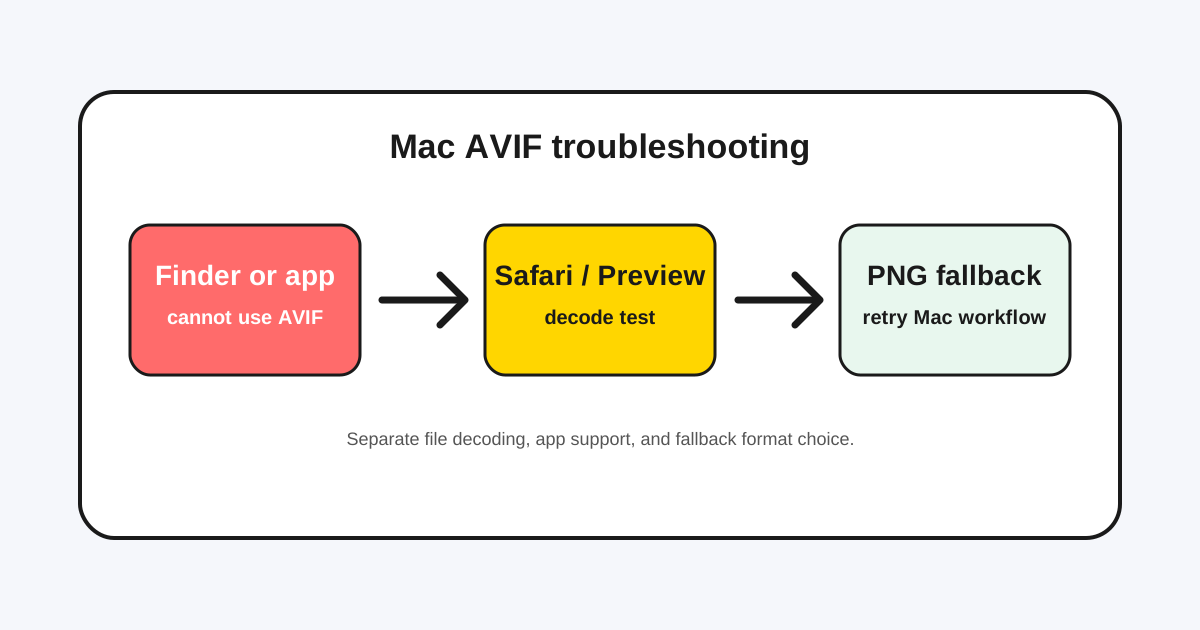
Mac AVIF fix flow
Mac AVIF troubleshooting works best when it separates decoding support from app, Finder, and upload support.
Symptom, cause, fix
These branches help Mac users decide when PNG, JPG, or no conversion is the right next step.
| Symptom | Likely cause | Fix |
|---|---|---|
| Preview opens, but another app rejects the file | The Mac app does not import AVIF even though macOS can decode it. | Convert AVIF to PNG before editing or placing it. |
| Finder or Quick Look is inconsistent | Version, metadata, or profile differences affect preview behavior. | Use PNG for reliable handoff. |
| Safari displays AVIF, but an uploader rejects it | Browser image support is separate from destination support. | Use PNG for graphics or JPG for opaque photos. |
Last updated: May 12, 2026 · Maintained by AVIF to PNG Editorial Team · v1.0